怎么使用cool edit pro 做降噪处理
有很多喜欢没事在自己家用电脑录歌的朋友都很烦恼吧,用麦克风录出的人声,效果都不太好,一般都会有很多的环境噪音,然则录出的来的声音显得干燥,没有什么活力,那让我们来看看怎么做降噪音处理吧。
1.首先肯定是下载cool edit pro,下载简体中文版就行了。
2.下载好后,解压,点击安装。
3.安装好后打开。
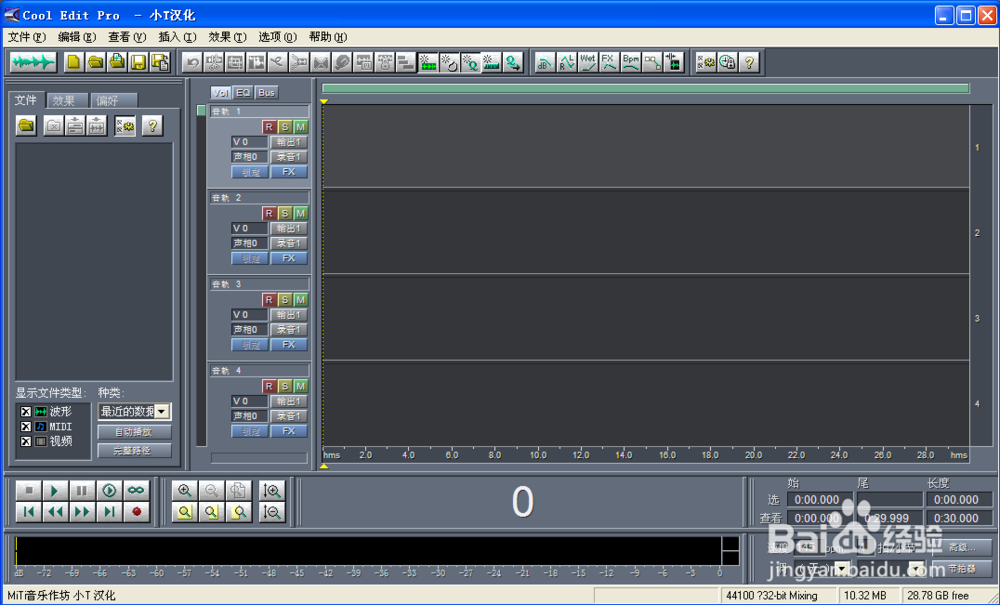
4.录音
首先我们需要录制一个降噪的样本,方便我们录完歌曲的时候对歌曲进行环降噪
按图片顺序依次点击:
第一步:点击R
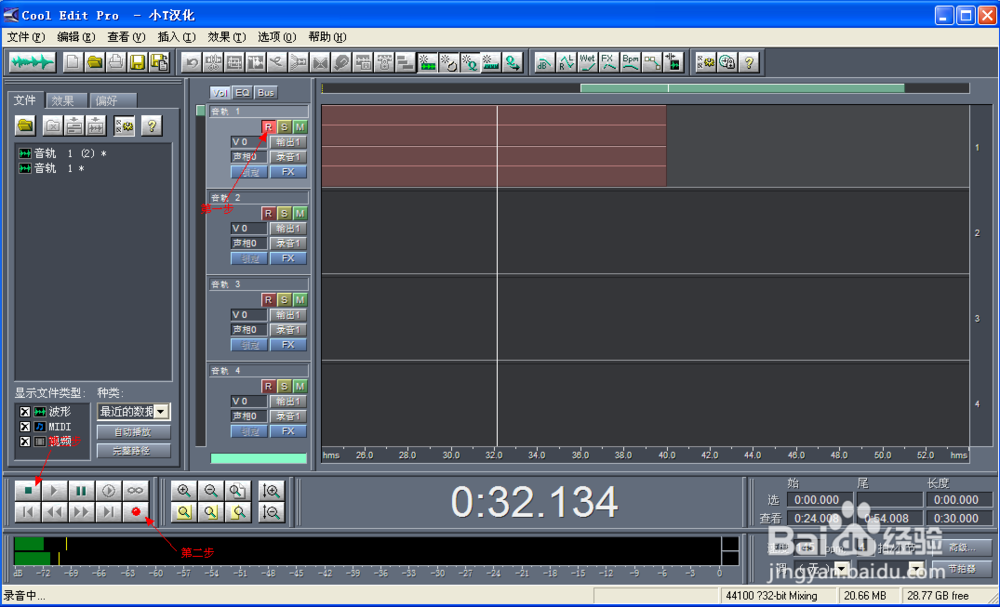
第二步:进行录音,点击红色圆圈,录制大概三四秒,把周围的噪音录下来。
第三步:录完后点击,停止。
5.点击切换
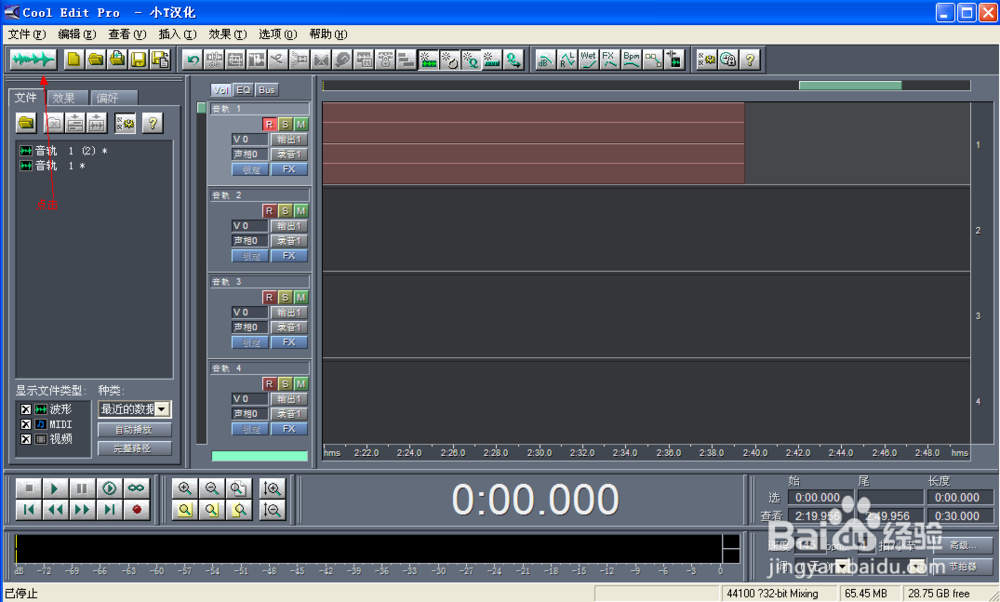
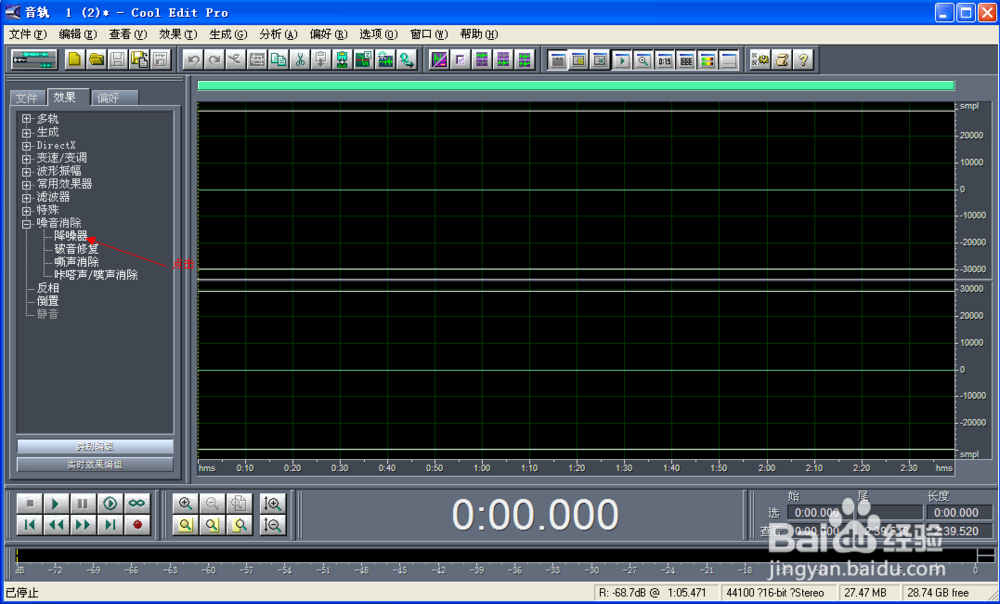
点击效果
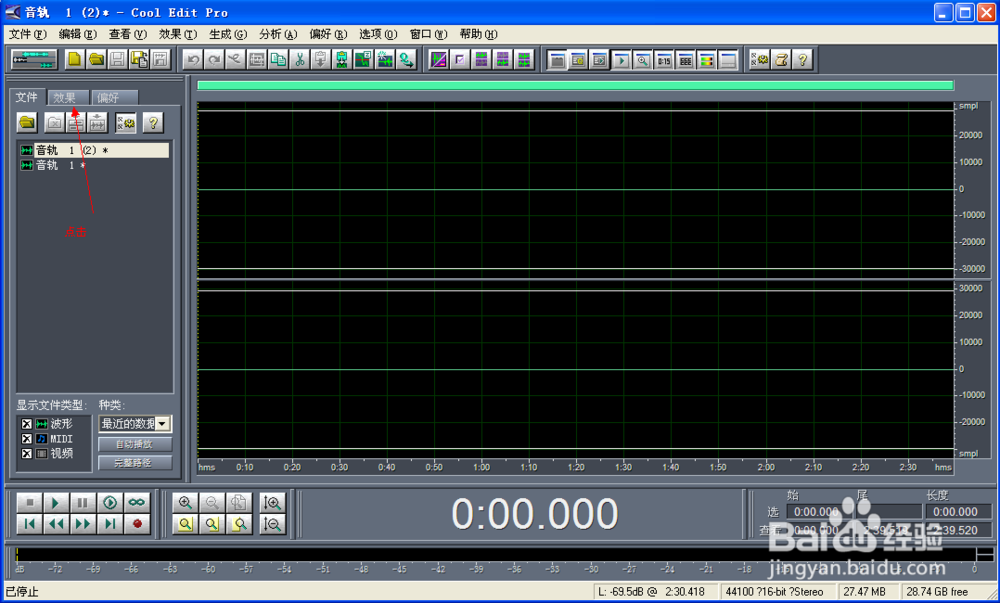
点击噪音消除-降噪器
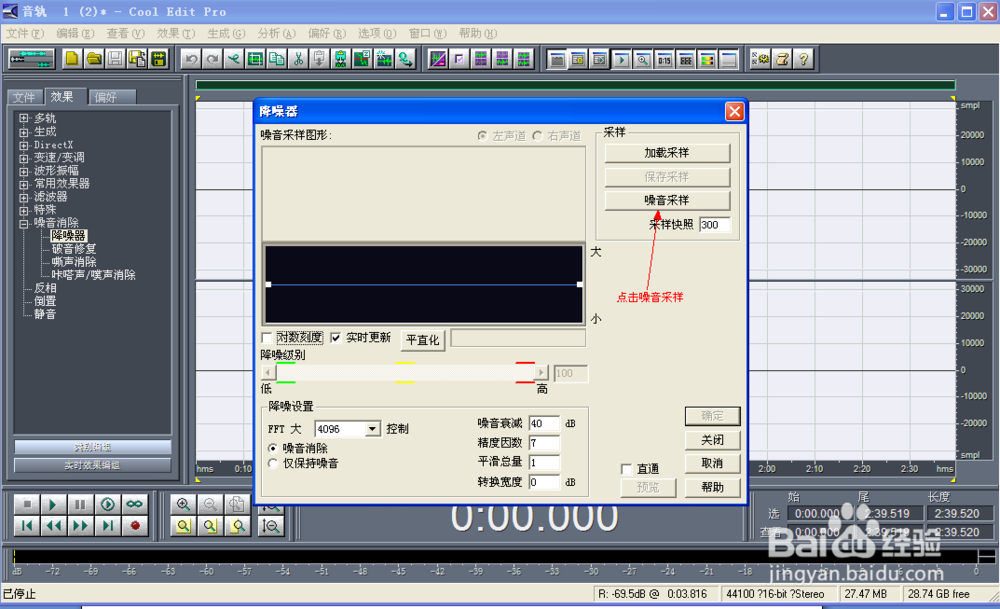
点击噪音采样
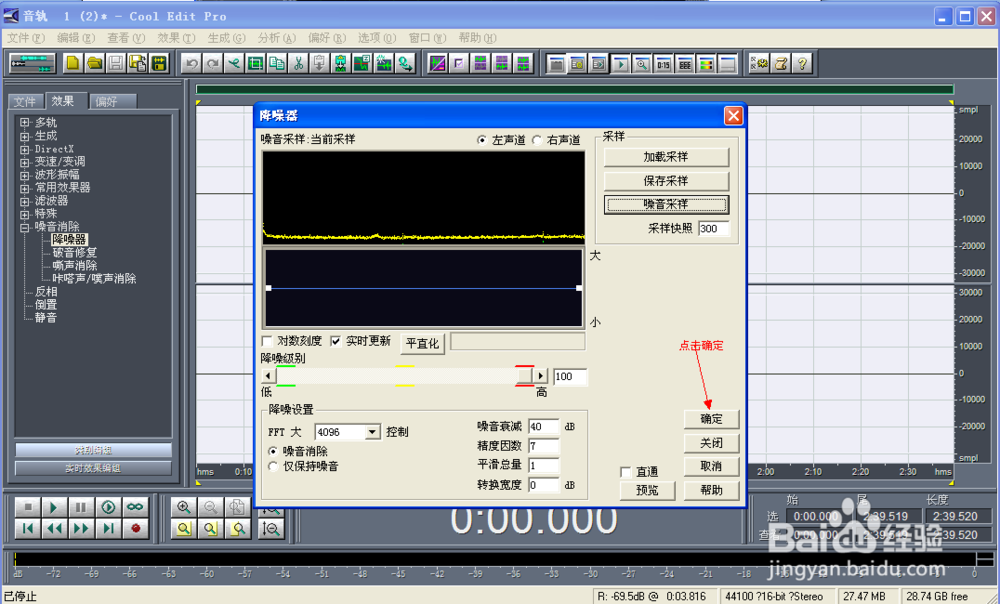
确定
然后点击切换
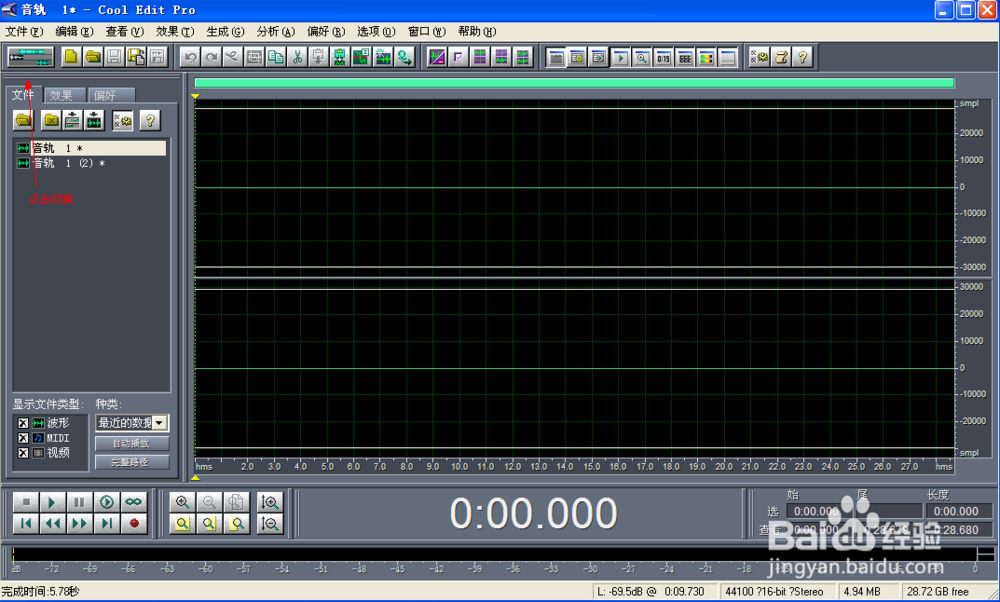
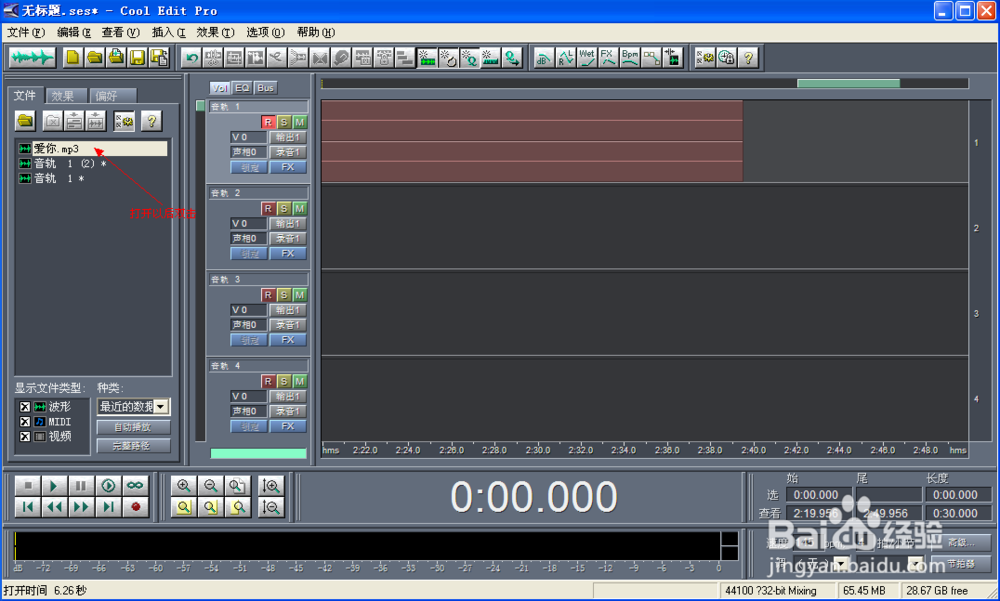
打开你要降噪的录音
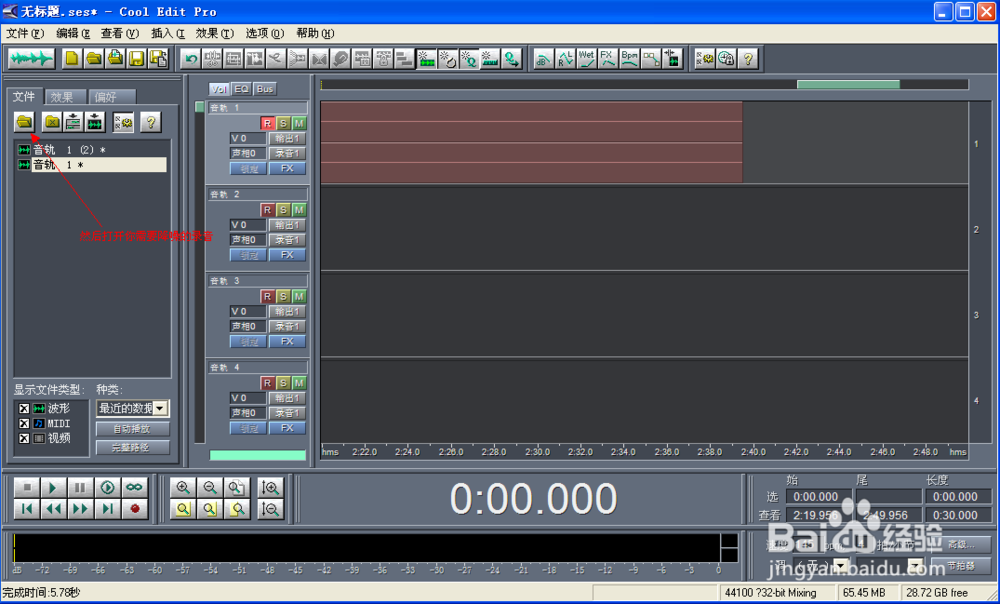
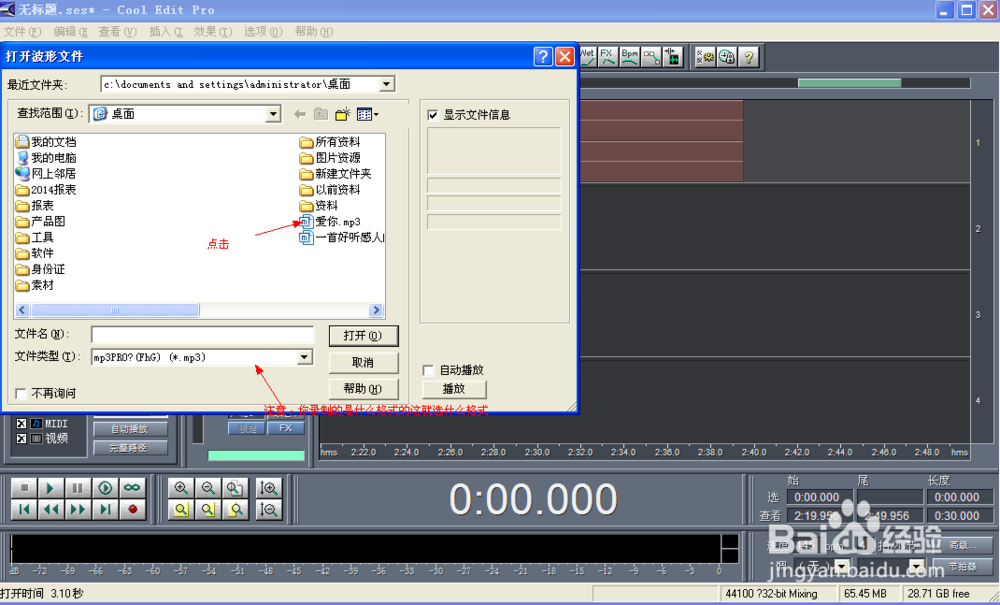
双击
点击效果
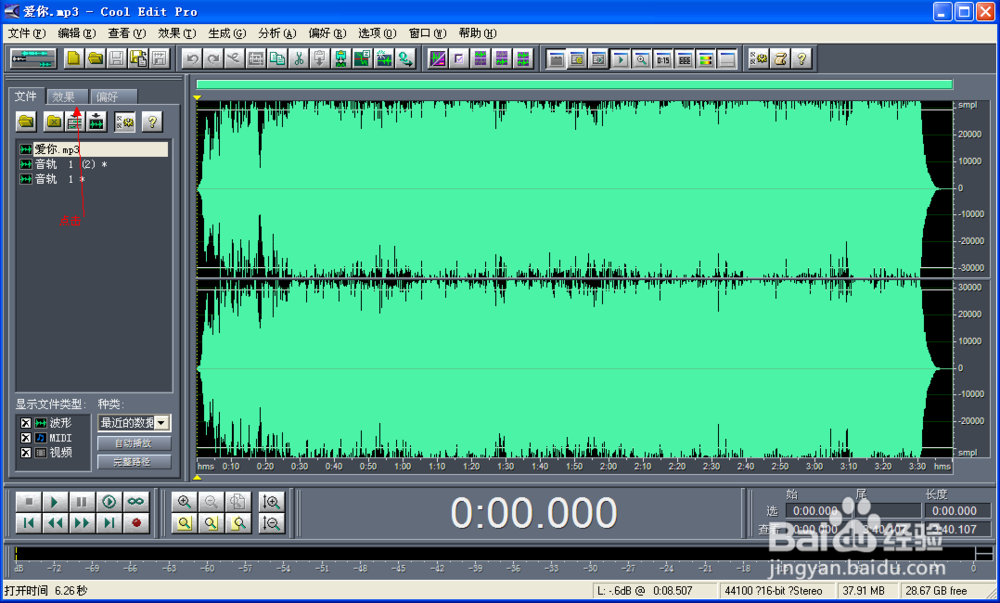
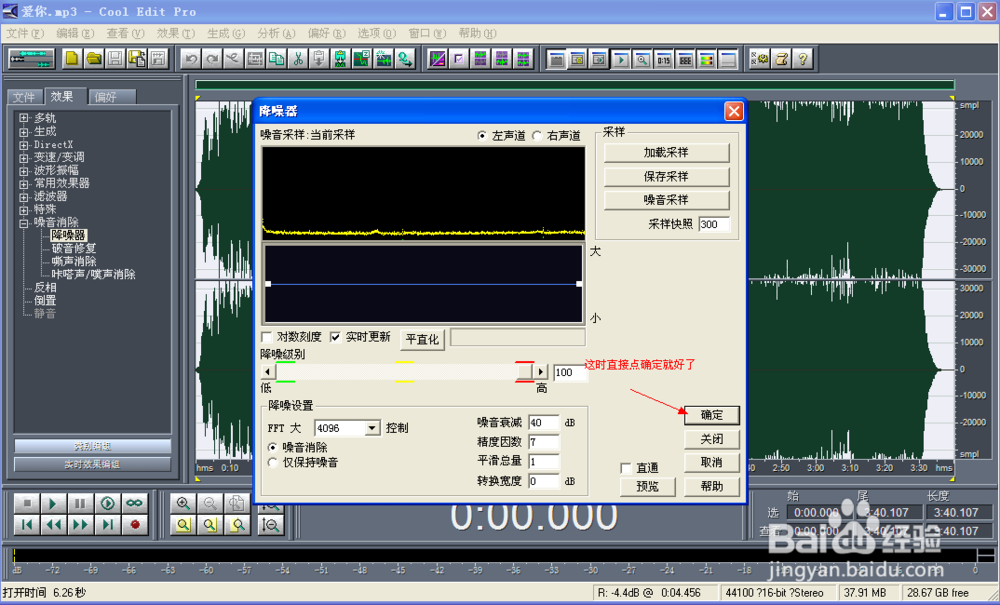
再点击降噪器
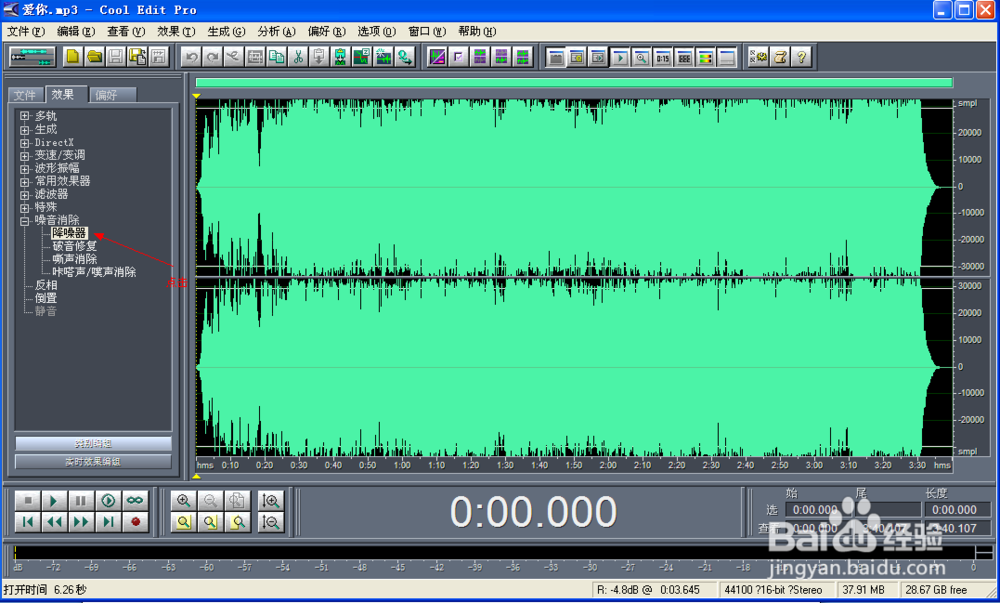
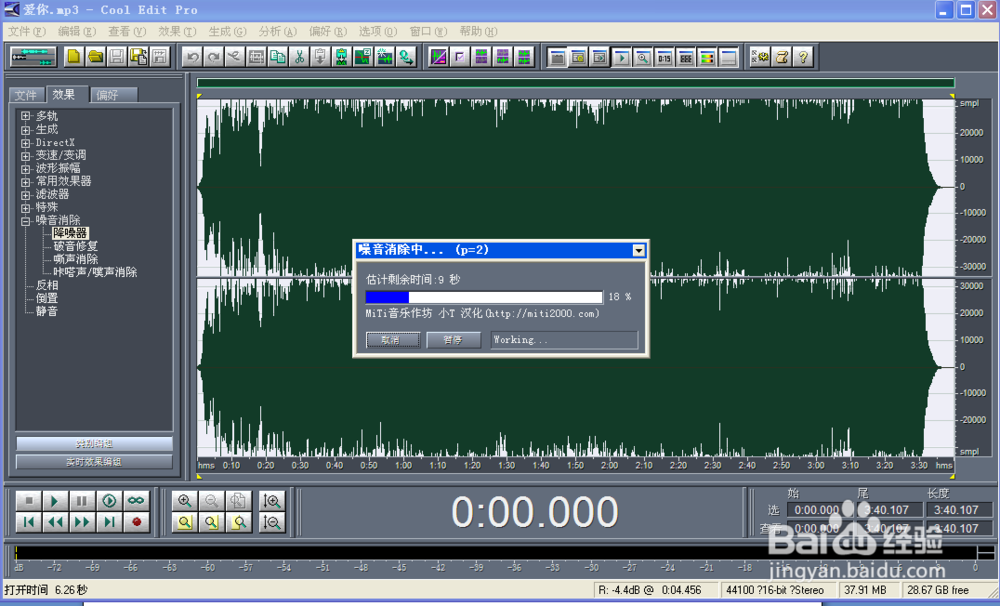
这时直接点击确定就可以了
最后保存降噪完的音频
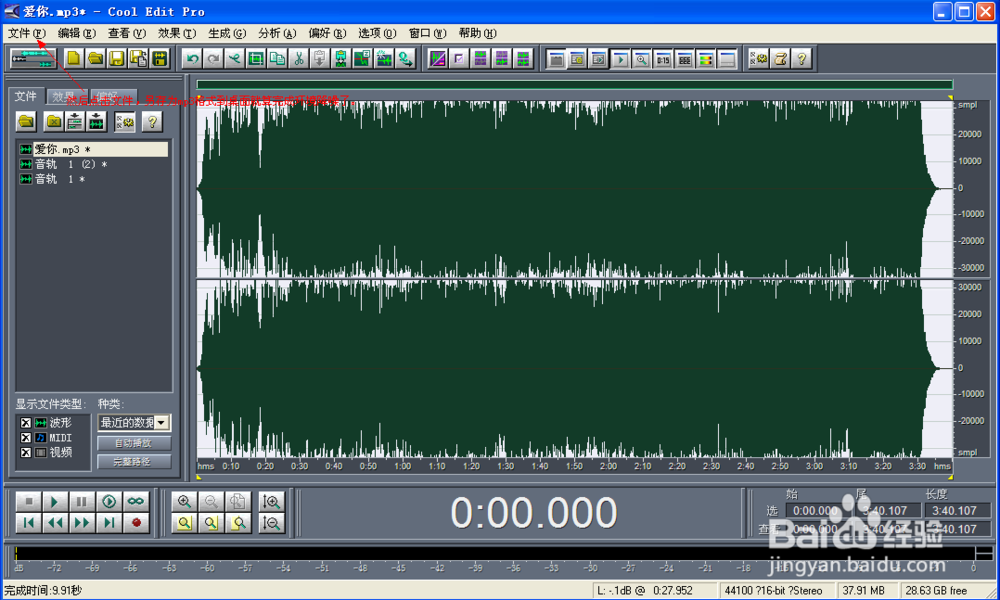
OK,到这里,你所录制的音频就能达到一个很好的效果了。
阅读量:78
阅读量:129
阅读量:86
阅读量:26
阅读量:23